
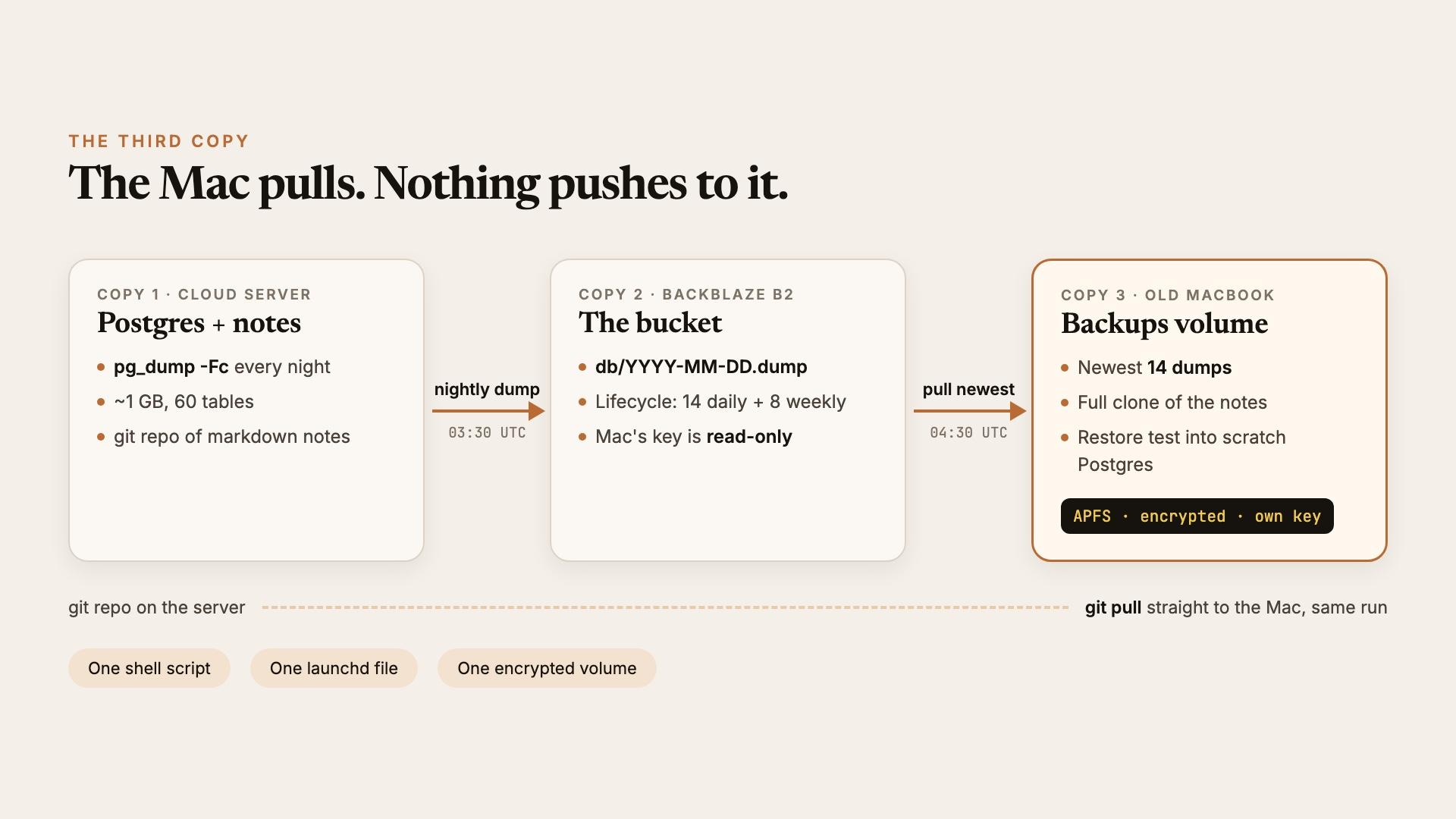
Our second brain runs on a small cloud server: a Postgres database with every note, inventory record and agent conversation, plus a git repo of markdown notes. Every night the server dumps the database to Backblaze B2. That's two copies. The classic 3-2-1 rule asks for three, with one of them somewhere you physically control.
We had a 2021 16-inch MacBook Pro with an M1 Max sitting in a drawer. This week it became our home server: local models, a voice clone, and the third copy of everything. This post covers the backup part, step by step, so you can do the same with any spare Mac.
The whole thing is one shell script, one launchd file and one encrypted disk volume. It took an afternoon, including two failed runs that taught us something.
What you end up with
The Mac pulls; nothing pushes to it. If the Mac is off for a week, the server doesn't care. The next run fetches the newest dump.
The backups sit on their own encrypted volume with their own key, separate from your login password.
Every so often the Mac proves the backup works by restoring it into a scratch database and counting rows.
You need a Mac on macOS 13 or later, a server running Postgres, a B2 account (or any S3-style storage rclone supports), and Homebrew.
Step 1: Dump the database to B2 every night
On the server, install rclone and give it a B2 key. In the B2 web console, create an application key restricted to your backup bucket.
rclone config create b2 b2 account <keyID> key <applicationKey>Then a nightly job. A cron line is enough:
# /etc/cron.d/db-backup  (03:30 UTC every night)
30 3 * * * postgres  f=/var/backups/db/$(date -u +\%F).dump && pg_dump -Fc mydb -f "$f" && rclone copy "$f" b2:my-backups/db/ && find /var/backups/db -name '*.dump' -mtime +3 -delete
-Fc is Postgres's custom format: compressed, and pg_restore can restore it in parallel. Our dump is about 1 GB with 60 tables. Set a lifecycle rule on the bucket so old dumps expire. We keep 14 daily and 8 weekly.
Step 2: Prepare the Mac to stay on
On the Mac:
sudo pmset -a sleep 0 disksleep 0 womp 1
brew install rclone postgresql@16
Use the same major version of Postgres as your server. Install Tailscale or similar if you want to reach the Mac from anywhere, and keep it plugged in. If your macOS has a battery charge limit, set it to 80%.
Give the Mac its own B2 key, read-only, scoped to the backup bucket. Create it in the B2 console (“Read Only” access), then:
rclone config create b2 b2 account <readOnlyKeyID> key <readOnlyKey>
rclone ls b2:my-backups/db/     # should list your dumps
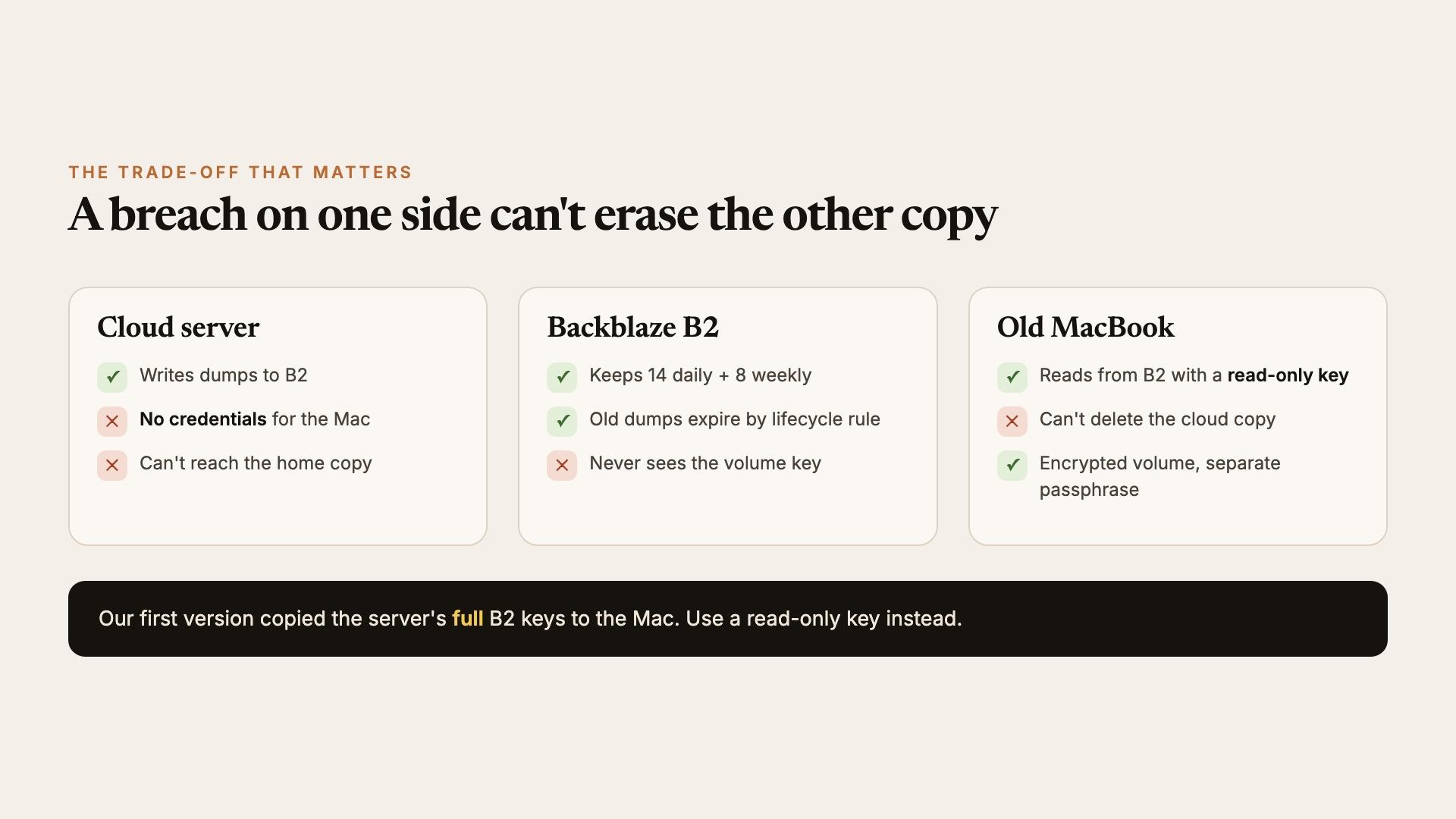
We'll be honest: our first version copied the server's full keys to the Mac. A read-only key means a compromised Mac can't delete your cloud copy. Do better than we did.
Step 3: Create an encrypted volume with its own key
APFS lets you add a volume to the Mac's existing disk container. It shares free space with the system, so you don't have to resize anything. Generate a random passphrase into a file only your user can read, then create the volume from it:
mkdir -p ~/.config/backup && chmod 700 ~/.config/backup
( umask 077; LC_ALL=C tr -dc 'A-Za-z0-9' < /dev/urandom | head -c 40 > ~/.config/backup/volume.pass )

diskutil apfs list | grep "APFS Container Reference"   # usually disk3 on Apple silicon
sudo diskutil apfs addVolume disk3 APFS Backups -stdinpassphrase < ~/.config/backup/volume.pass

diskutil info Backups | grep -E "FileVault|Mount Point"  # FileVault: Yes, /Volumes/Backups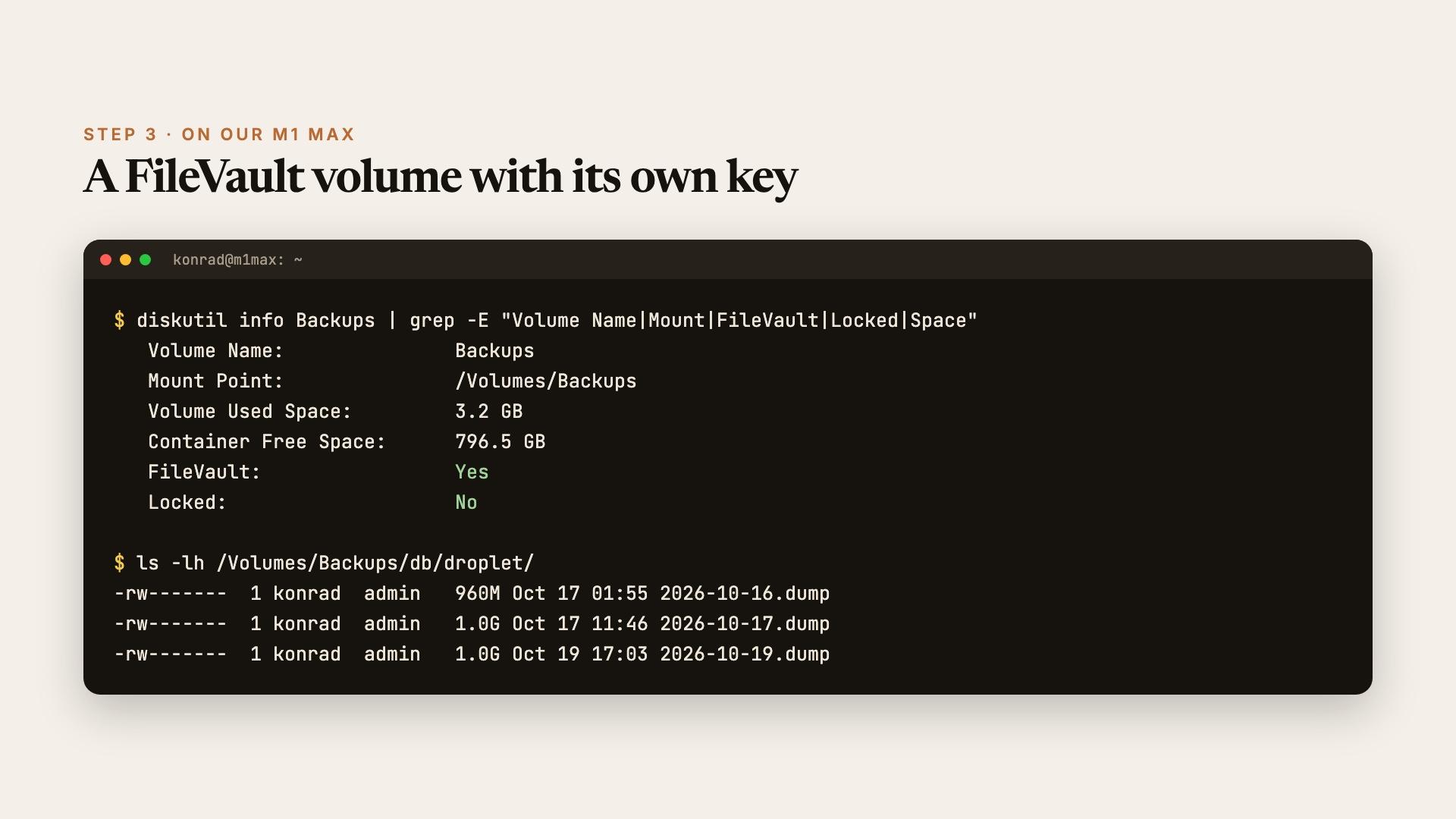
The passphrase never appears on screen or in your shell history. To unlock the volume later:
diskutil apfs unlockVolume Backups -stdinpassphrase < ~/.config/backup/volume.passYou will see a prompt. After every reboot, macOS shows “Enter a password to unlock the disk Backups”. Your login password won't work, because the volume has its own key. Press Cancel and let the job unlock it, or run the unlock command above. This caught us out the first time the Mac restarted. If you want to unlock it by hand someday, put the passphrase in your password manager:
pbcopy < ~/.config/backup/volume.pass # paste into your password manager, then copy something elseStep 4: The pull script
Save this as ~/bin/home-backup.sh:
#!/bin/bash
set -euo pipefail
export PATH=/opt/homebrew/opt/postgresql@16/bin:/opt/homebrew/bin:/usr/bin:/bin:/usr/sbin:/sbin
VOL=/Volumes/Backups
PASS=$HOME/.config/backup/volume.pass
DEST=$VOL/db
REMOTE=b2:my-backups/db
KEEP=14
LOG=$HOME/Library/Logs/home-backup.log
log() { printf '%s %s\n' "$(date -u '+%F %TZ')" "$*" | tee -a "$LOG" >&2; }
die() { log "FAILED: $*"; exit 1; }

# 1. Unlock the volume if it's locked (it is after every reboot).
if ! mount | grep -q " on $VOL "; then
  diskutil apfs unlockVolume Backups -stdinpassphrase < "$PASS" >/dev/null 2>&1 || true
fi
mount | grep -q " on $VOL " || die "Backups volume not mounted"
mkdir -p "$DEST"

# 2. Fetch the newest dump unless we already have it. Copy to .part first so a
#    half-finished download never looks like a good backup.
newest=$(rclone lsf "$REMOTE" | grep -E '^[0-9]{4}-[0-9]{2}-[0-9]{2}\.dump$' | sort | tail -1)
[ -n "$newest" ] || die "no dumps in $REMOTE"
if [ -s "$DEST/$newest" ]; then
  log "already have $newest"
else
  rclone copyto "$REMOTE/$newest" "$DEST/$newest.part" && mv "$DEST/$newest.part" "$DEST/$newest"
  log "pulled $newest ($(stat -f %z "$DEST/$newest") bytes)"
fi

# 3. Keep the newest KEEP dumps. (macOS head has no "-n -N"; this works on both.)
ls -1 "$DEST" | grep -E '\.dump$' | sort -r | tail -n +$((KEEP + 1)) | while read -r old; do
  rm -f "$DEST/$old"; log "pruned $old"
done

# 4. Optional: mirror your notes repo too.
# (cd ~/notes && git pull -q --ff-only) && log "notes pulled"

log "done"
chmod +x ~/bin/home-backup.sh, run it once by hand, and check ls /Volumes/Backups/db.
Step 5: Schedule it with launchd
Save as ~/Library/LaunchAgents/com.me.home-backup.plist, replacing YOU with your username. Schedule it an hour or so after the server's dump.
<?xml version="1.0" encoding="UTF-8"?>
<!DOCTYPE plist PUBLIC "-//Apple//DTD PLIST 1.0//EN" "http://www.apple.com/DTDs/PropertyList-1.0.dtd">
<plist version="1.0"><dict>
  <key>Label</key><string>com.me.home-backup</string>
  <key>ProgramArguments</key><array><string>/bin/bash</string><string>/Users/YOU/bin/home-backup.sh</string></array>
  <key>StartCalendarInterval</key><dict><key>Hour</key><integer>12</integer><key>Minute</key><integer>30</integer></dict>
  <key>StandardOutPath</key><string>/Users/YOU/Library/Logs/home-backup-launchd.log</string>
  <key>StandardErrorPath</key><string>/Users/YOU/Library/Logs/home-backup-launchd.log</string>
</dict></plist>
launchctl bootstrap gui/$(id -u) ~/Library/LaunchAgents/com.me.home-backup.plist
launchctl list | grep home-backupThe hour is in the Mac's local time. Ours runs at 12:30 local time (UTC+8), which is 04:30 UTC, an hour after the 03:30 UTC dump.
Step 6: Prove it restores
A backup you've never restored is a hope, not a backup. Start a throwaway Postgres on a spare port and restore into it:
initdb -D ~/pgscratch -U postgres --auth=trust
pg_ctl -D ~/pgscratch -o "-p 5433 -k /tmp" -l ~/pgscratch/pg.log start
createdb -h /tmp -p 5433 -U postgres restore_test
pg_restore -h /tmp -p 5433 -U postgres -d restore_test --no-owner --no-privileges -j 4 \
  "/Volumes/Backups/db/$(ls /Volumes/Backups/db | sort | tail -1)" 2> ~/pgscratch/restore.err
grep -c . ~/pgscratch/restore.err        # 0 is what you want
psql -h /tmp -p 5433 -U postgres -d restore_test -c "select count(*) from my_important_table"
pg_ctl -D ~/pgscratch stop
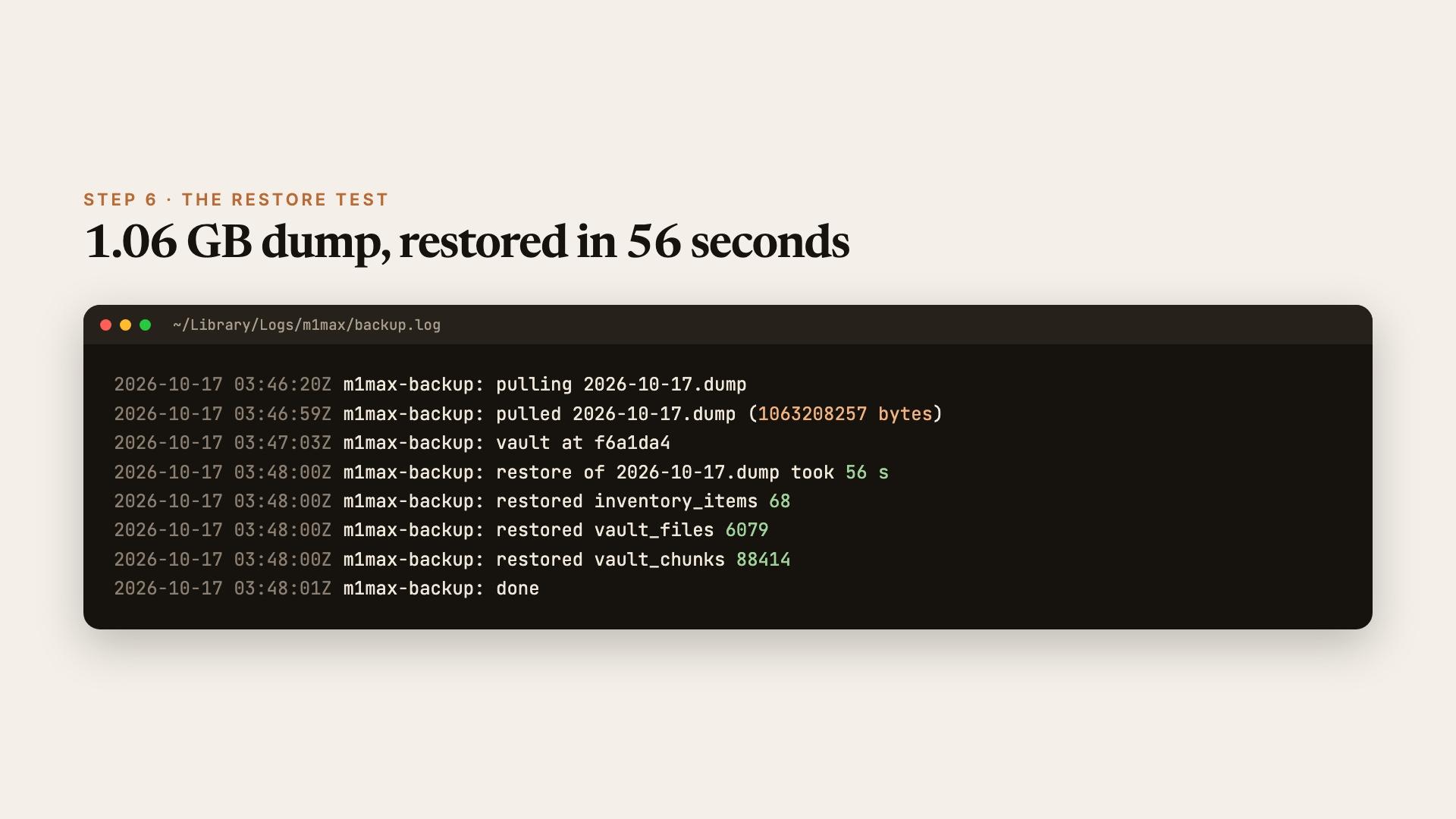
Run the same count(*) on the server and compare. Ours restored a 1.06 GB dump in 56 seconds with zero errors, and the counts matched the live database row for row. The one exception was a single row written after the dump ran.
Two things broke on the way there, and they'll probably hit you too:
Extensions. Our database uses pgvector. Without it in the scratch Postgres, the restore produced 35 errors and our embeddings table never came back. At the time, Homebrew's pgvector only shipped for Postgres 17 and 18, so for 16 we built it from source (make && make install with PG_CONFIG pointing at Homebrew's postgresql@16). Install every extension your server uses before you trust a restore.
Roles. A dump made with grants references your server's roles. --no-owner --no-privileges skips most of it, and creating the roles in the scratch database first silences the rest, so the error count means something.
The honest trade-offs
The key file sits next to the volume. If someone can read your user's files, they can unlock your backups. What protects you is FileVault on the boot disk: if the Mac is stolen while it's off, both the key file and the volume are encrypted. The separate volume key mostly buys you a clean upgrade path. Delete the key file and keep the passphrase only in your password manager, and the backups stay locked until you unlock them by hand. The cost is that the job can't run unattended after a reboot.
A laptop isn't a server. With FileVault on, a reboot stops everything until someone types the password and logs in, because LaunchAgents wait for a login. Our Mac rebooted seven minutes after its first scheduled backup run, and sat waiting. That's fine for us: the cloud server and B2 keep running, and the Mac catches up. If you need it unattended, you trade away disk encryption or move to LaunchDaemons.
Pulling beats pushing. Give the server no credentials for the Mac, and give the Mac a key that can only read. Then a breach on either side can't erase the other's copy.
That's the whole system: a cron line on the server, a short script and a plist on the Mac, and one encrypted volume. An old laptop in a drawer is a better third copy than no third copy.